
How-to guides
Short, step-by-step guides for the things you'll do most in Reading Journey.
Add books
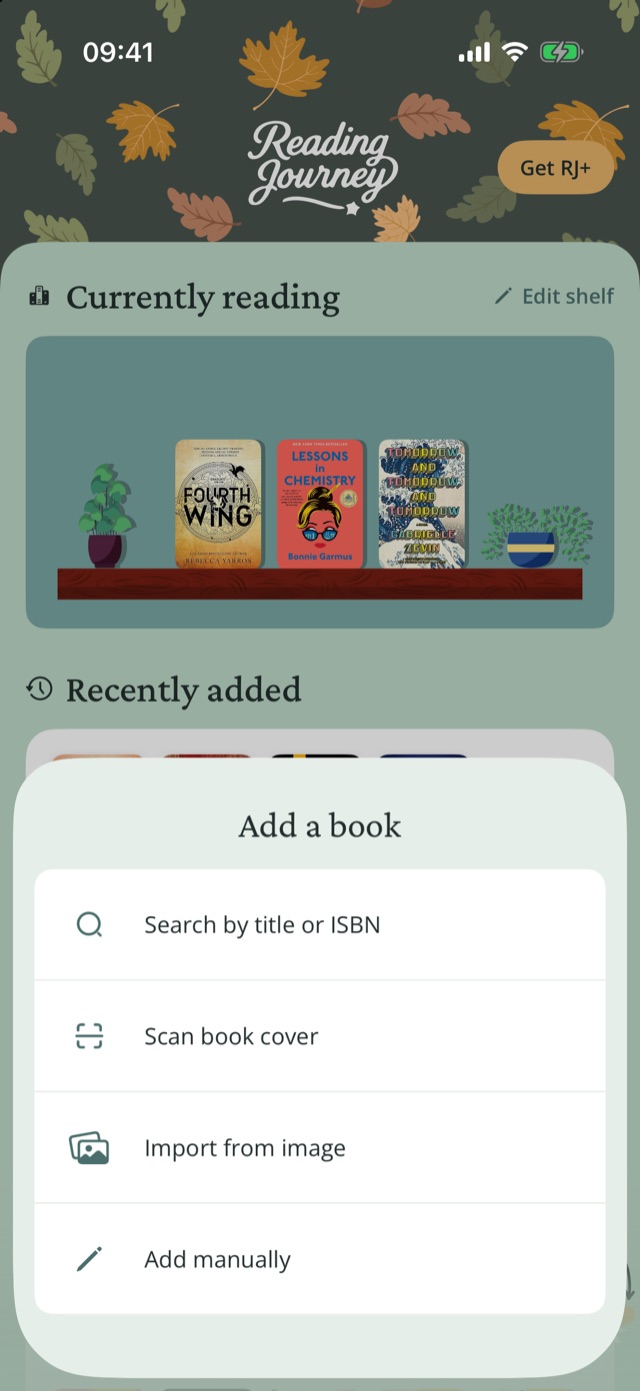
Search for a book
- On Home, tap Add new book (or Add book in Collections).
- Tap Search by title or ISBN and type the title, author or ISBN.
- Tap a result, choose the format (print, e-book or audiobook) and tap Add Book.
Scan a book cover
- In Add a book, tap Scan book cover.
- Point the camera at the front cover, or at the back cover so the ISBN under the barcode is visible, and tap the shutter.
- Pick the right match.
Import books from a photo or screenshot
- In Add a book, tap Import from image.
- Pick one or more photos of a shelf, a stack, book spines or a screenshot of a list.
- Check the books Reading Journey found (new ones are already selected) and tap Add to Collection. They're added as Want to Read.
Add a book by hand
- In Add a book, tap Add manually.
- Enter the Title and Author, choose the book type and enter the page count or duration.
- Optionally add a cover photo, a status and a description, then tap Add Book.
Add books from TikTok or Instagram
- In TikTok or Instagram, open the video or post and tap Share.
- Choose Importer, Reading Journey's share option (on Android, Reading Journey).
- Pick the books you want. They appear the next time you open Reading Journey.
You can share up to 10 images from Photos the same way.
Log a reading session
- On Home, tap Log Your Reading under Most Recent Entries (or New Log on a book you're reading).
- Add a photo, how it felt, notes and where you read, all optional.
- Enter your progress under Current Progress and tap Save to Journal.
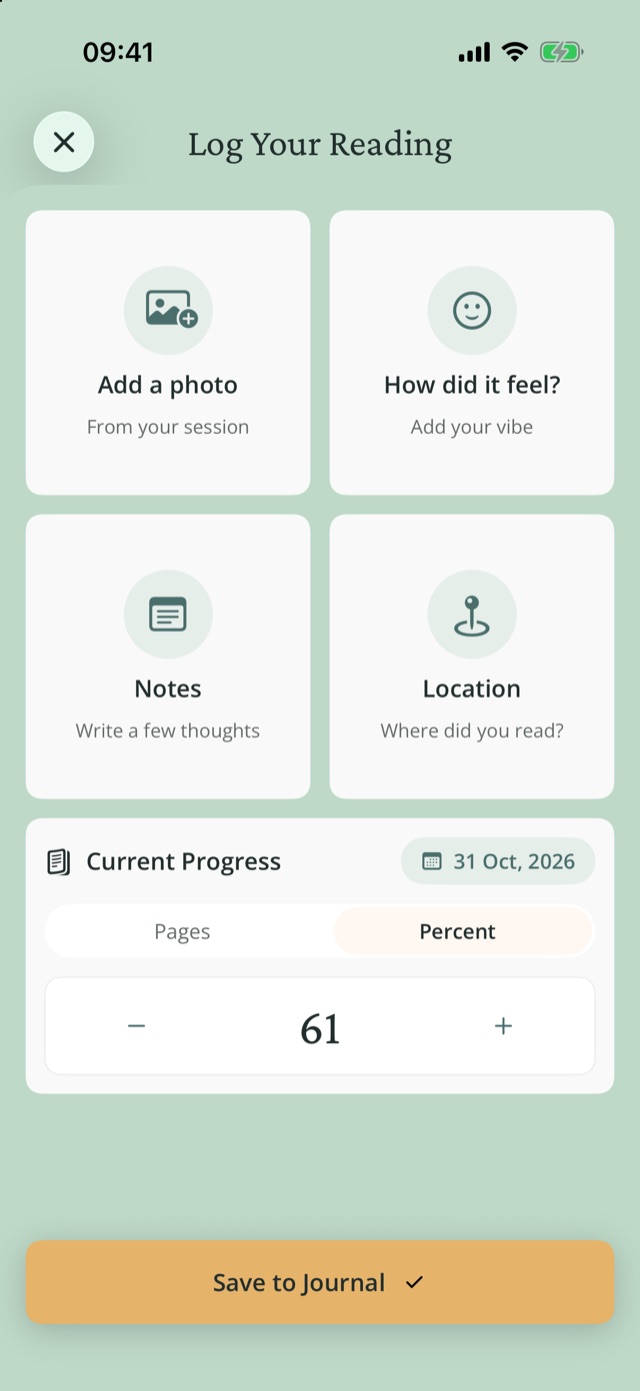
To move your progress without writing an entry, open the book and tap Update Progress.
Track an audiobook
- Open the book and set Reading format to Audiobook.
- Tap Add total length and enter the duration.
- Log Time listened, Time remaining or Percent.
Change a book's status or finish it
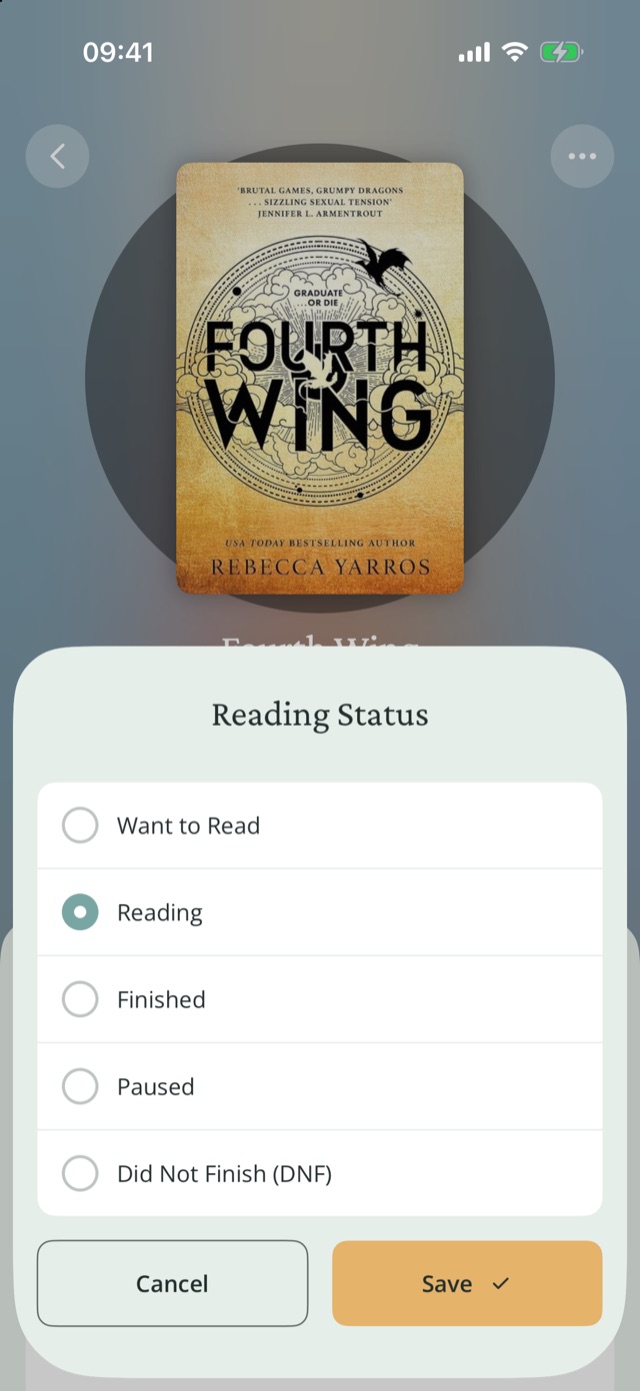
- Open the book and tap its status button.
- Choose Want to Read, Reading, Finished, Did Not Finish (DNF) or Paused, then tap Save.
- When you choose Finished, rate the book, check the dates and add a review, or tap Skip.
Read a book again
- Open the finished book.
- Tap Reread This Book.
Your earlier read stays under My Past Journeys. To count rereads toward goals, turn on Settings›Reading preferences›Count Rereads.
Take a break from a book
- Open a book you're reading and tap Show Snooze Options.
- Choose 1 Day, 3 Days, 1 Week or 1 Month. The book comes back on its own.
Choose Forever (Stop Reading) to move it to Did Not Finish.
Plan what to read next
- On Home, find the Next Up card.
- Tap an empty slot and pick a book you haven't started, or tap Add new book.
- Drag covers to change the order. Long-press a cover to Replace or Remove it.
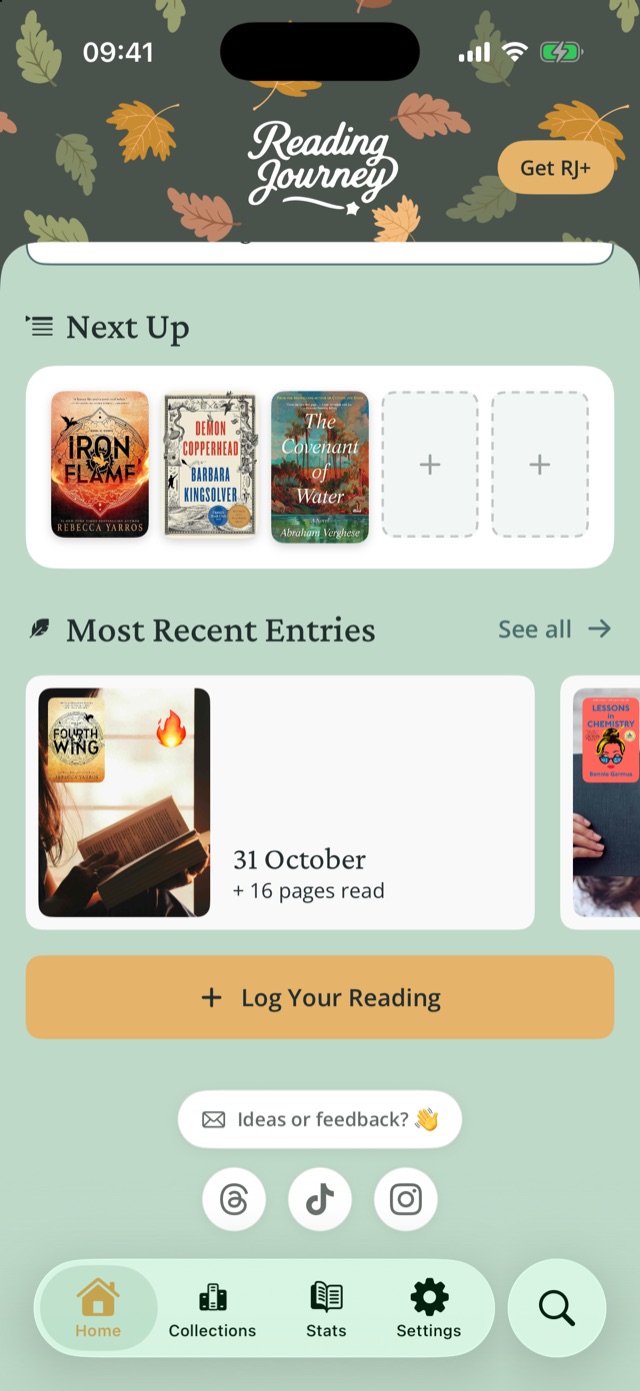
Next Up holds five books. Starting a book takes it out.
Make a collection
- Open the Collections tab and tap Create Collection.
- Name it.
- Open a book, choose Add to collection... and pick the collection.
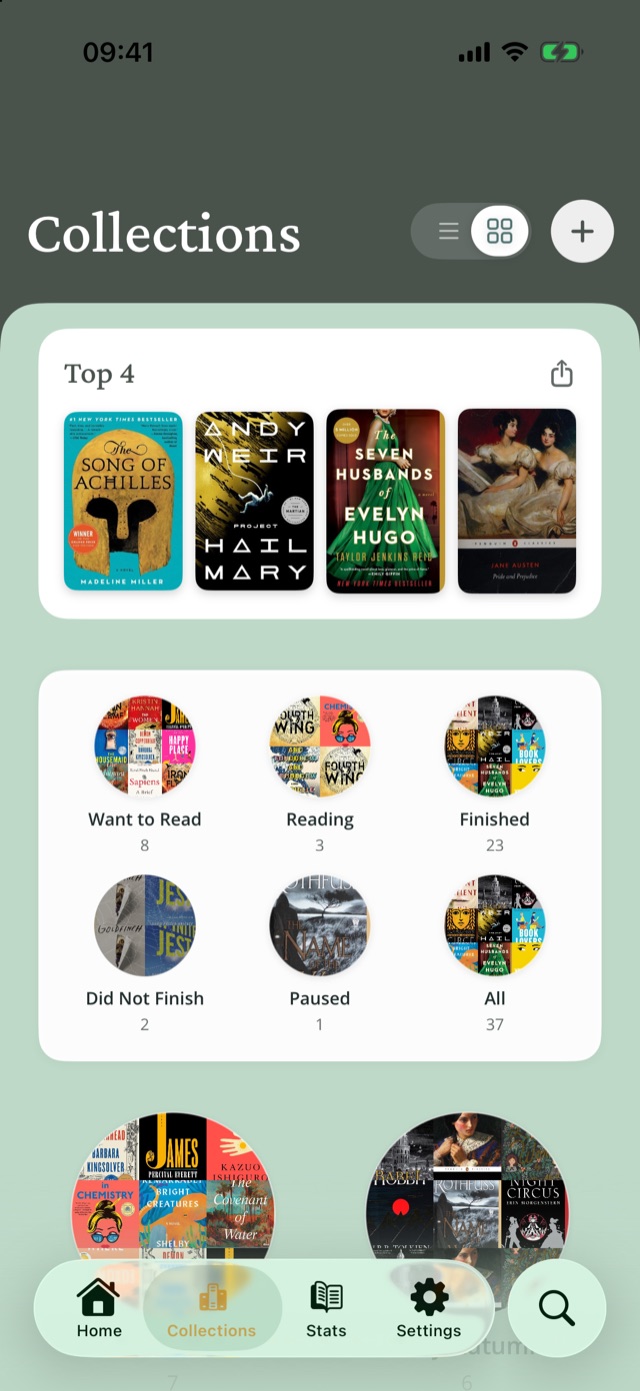
Pick your Top 4
- Open the Collections tab.
- Tap an empty slot on the Top 4 card and pick a book, or search for a new one.
- Tap Share your Top 4 to share it as an image.
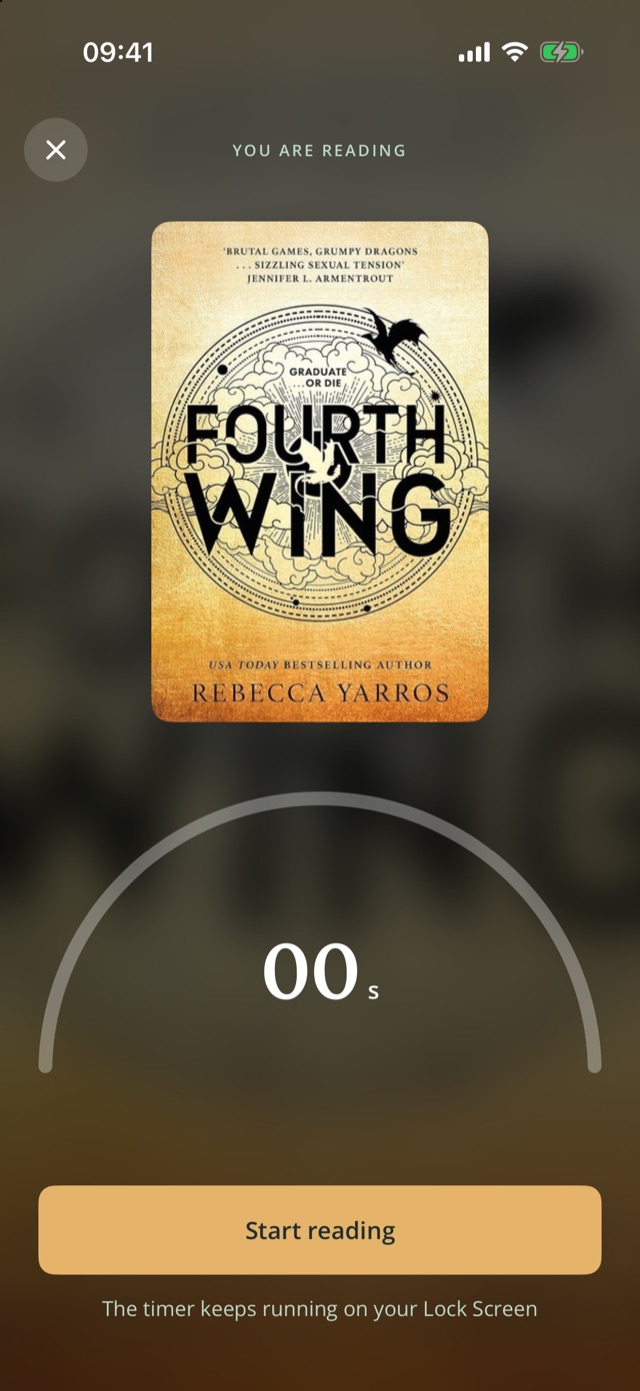
Time a reading session
- Set a Minutes goal on Home if you don't have one.
- Tap Read now on the goal card and pick the book.
- Read. Tap Pause if you need to. On iPhone the timer also shows on your Lock Screen.
- Tap Done and save the entry. Minutes Read is filled in.
Decorate your bookshelf
- On Home, tap Edit shelf.
- Choose a background, wood, plants and decor.
- Tap Save. Your Home Screen widget uses the same shelf.
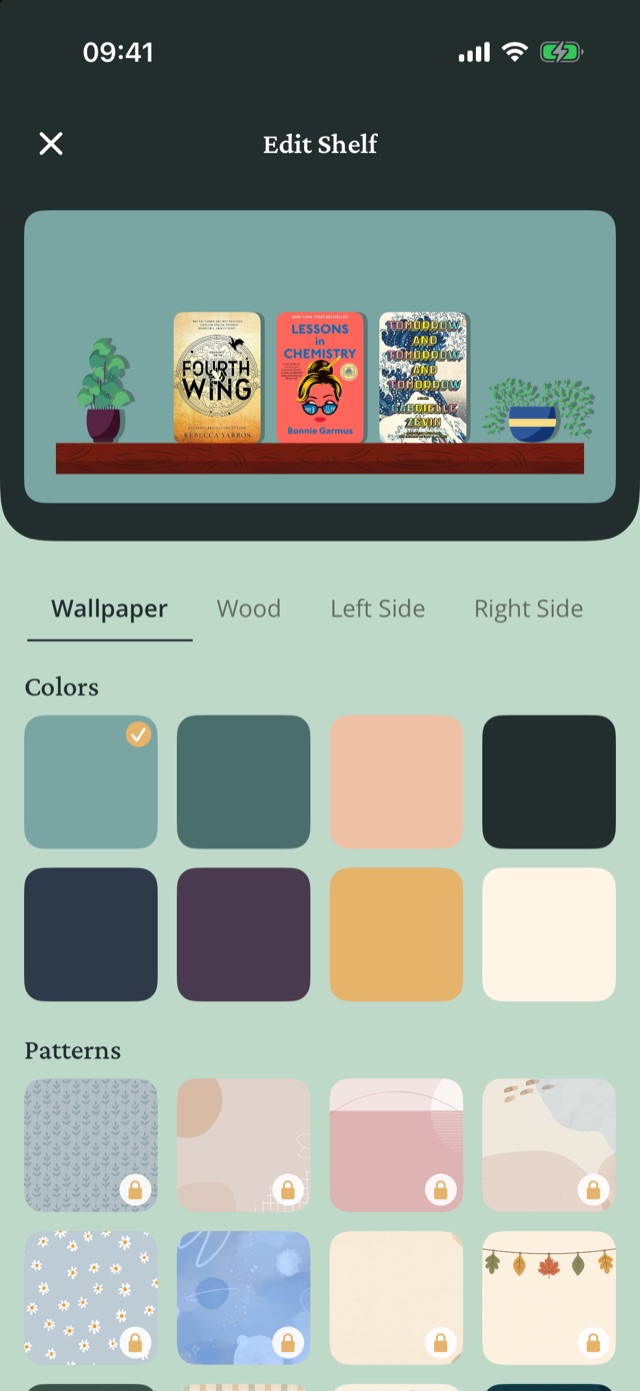
The 8 plain colours, Oak wood and two plants are free; everything else needs RJ+.
See the goals you reached New in 2.6
- Open Stats.
- Under the Reading Calendar, find Accomplishments. Swipe the cards to see older goals.
- To see one year or month, tap the range button at the top right and choose it, for example Last Year.
If you change a goal in the middle of a month, the new target counts for that whole month. Earlier months keep the target they had.
See your year or your own dates New in 2.6
- Open Stats and tap the range button at the top right.
- Choose This Year or Last Year to see a whole year. The year is shown next to the name, for example Last Year (2025).
- For other dates, choose Custom. In Custom Range, tap the first day, then the last day. Tap one day twice to see just that day.
- Tap Done. The range button now shows your dates, for example Jun 22 – 30. Tap Cancel to keep the range you had.
You can pick any day up to today. Tap a third day to start over.
Share your reading
- A month of books: open Stats, tap Share Your Progress under Reading Calendar, pick a month, then Customize and Save to Photos.
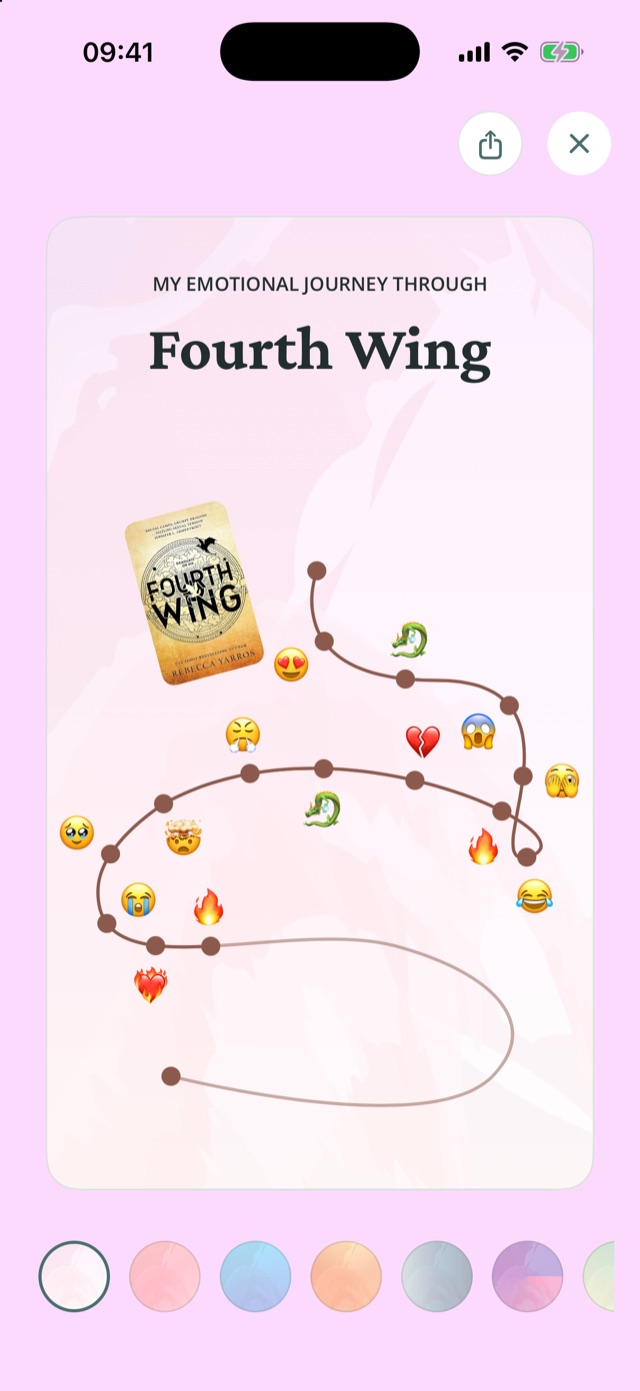
- How a book made you feel: open the book, tap Show Reactions, pick a background and share.
- Your Top 4: Collections > Share your Top 4.
From the public Reading Journey Docs.Reading Journey homePrivacyTermsSupport